

Overview
To add a class, it must be done online by the add course deadline published in the Academic Calendar for that term.
There are different add deadlines for summer term – each session has specific deadlines which are posted in the Academic Calendar. See Academic Regulation 11 for the rules related to adding and dropping courses.
Search for classes
The Schedule of Classes is your main resource for viewing course offerings by term. See how to Register from Schedule of Classes. You have the option to search by subject, instructor, campus, open/full classes, Baccalaureate Core requirements, and no cost/low cost course materials.
The Schedule of Classes also offers a build in tool called Scheduler, where you can customize a schedule and easily search the Schedule of Classes using specific criteria.
How to add courses
If you are a current student with access to Beaver Hub and have never registered for courses at OSU before, watch the Register for a Course Video to get started.
Step 1: Log into Beaver Hub
Step 2: Select the Academics tab
Step 3: Under Academic Resources, click on Register/Add/Drop Classes
Step 4: Click Register for Classes
Step 5: Select the term, click Continue
Step 6: To add a course, enter the CRN for each course under the Enter CRNs tab.
Step 7: Select Add to Summary button to include the course in the Summary box.
Step 8: Click Submit to register for the course.
A confirmation message, "Save Successful" will display in the upper right. Under the Summary box, the Status column will indicate "Registered" for the added courses.
You can also view the video for registering from classes.oregonstate.edu(Link is external).
Beaver Hub Access: If you are not currently able to access Beaver Hub, please review the eligibility requirements for student access(Link is external).
Late registration fees – $50 and $100
A late registration fee of $50 will be assessed for all initial registrations during the first two weeks of classes. Initial registration after the second week of classes will be assessed a late fee of $100. Students may request a one-time exception if the late registration was due to circumstances beyond their control.
Registration screen images
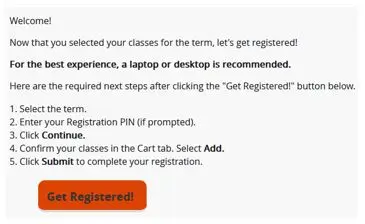
Once you choose an optimal schedule in your primary cart and click Submit Schedule, the classes transfer into the registration platform. A Registration landing page will open up with the next steps. Click Get Registered to view classes in the registration screen.
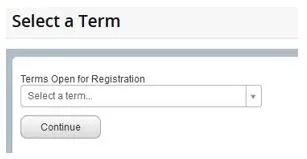
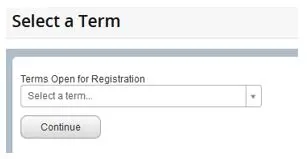
Select a term from the Terms Open for Registration drop-down menu and click Continue.
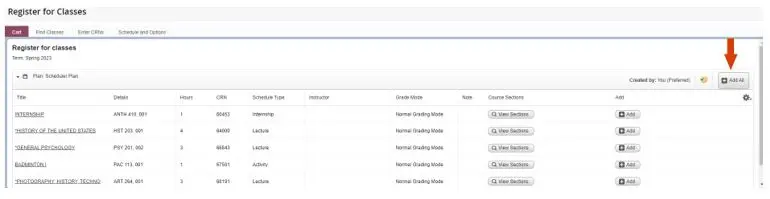
The classes from the Scheduler tool will appear in the Cart tab. Click the Add All button in the upper right-hand corner of your cart to register for all of the classes.
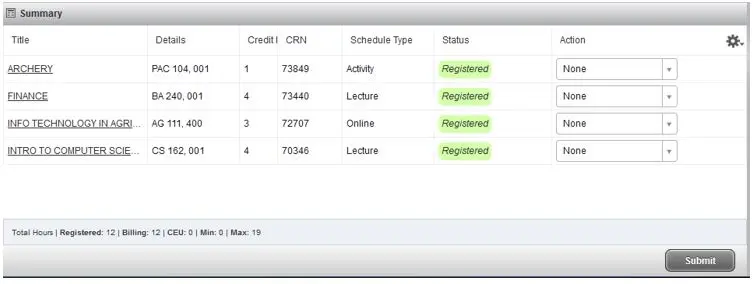
This will move your classes into the Summary box with a Pending status. Click the Submit button to register for the classes.
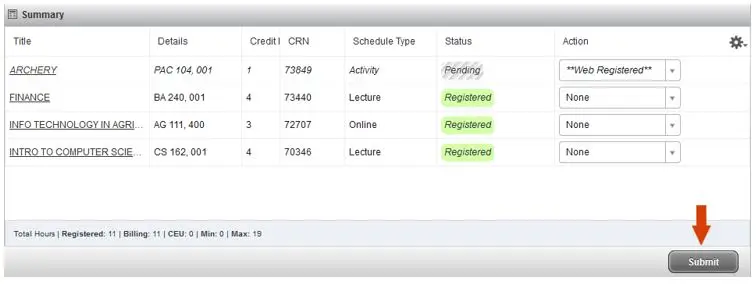
You will then see Registered in green in the Status column next to each class you have successfully registered for.
Log into Beaver Hub. Under the Academics tab, search for Register/Add/Drop Classes. From the Registration menu, select the Register for Classes section.

Select a term from the Terms Open for Registration drop-down menu and click Continue.
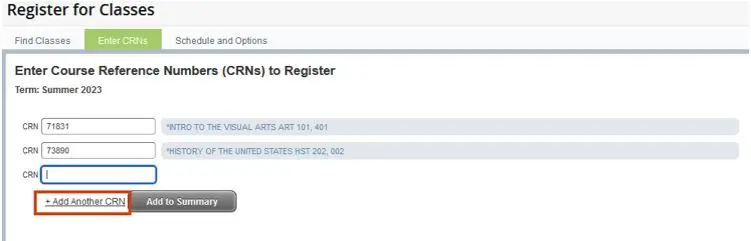
To register by entering CRNs directly, navigate to the Enter CRNs tab.

Enter the CRNs for the desired classes into the provided fields. You can click the Add Another CRN option to enter more than one class at a time. When finished, click the Add to Summary button to add the classes to the Summary box.
Click the Submit button in your Summary box once you are ready to register for your selected classes.

You will then see Registered in green in the Status column next to each class you have successfully registered for.
Variable credit courses
- Some courses are offered with a range of possible credits.
- When students enroll in courses with variable credits they are automatically enrolled in the course for one credit only.
- If a course is taught for variable credits, for example, 1 to 16 credits, online registration will prompt you to enter the correct number of credits for which you wish to enroll.
- If you need to change that number later, you may do so online during the course add period for the term.
- It is the responsibility of the student to alter their registration within the course add/drop period to reflect the number of credits they will be completing.
Changing credits on a variable credit course
Step 2: Select the Academics tab.
Step 3: Under Academic Resources, click on Register/Add/Drop Classes.
Step 4: Click Register for Classes.
Step 5: Select the term, click Continue.
Step 6: Go to the Schedule and Options Tab, variable credit courses will have the credits underlined and in red.
Step 7: Click on the credit hours to enter the number of credits needed. You will be able to see how many credit hours are allowable for the course - Enter the number of credit hours.
Step 8: Click Submit to register for the course.
A confirmation message, "Save Successful" will display in the upper right. Double-check that the credit hours are correct.
Registration screen images
Select the Register for Classes section from the Registration menu to change credits for a variable credit course.

Select the Schedule and Options tab. The variable credit course will have the credit hours underlined in red.
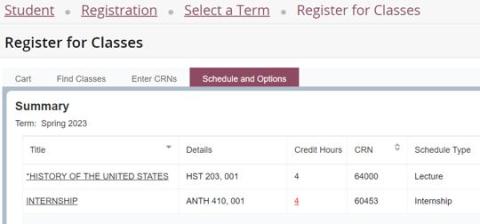
Click on the credit hours to enter the number of credits needed. You will be able to see how many credit hours are allowable for the course.
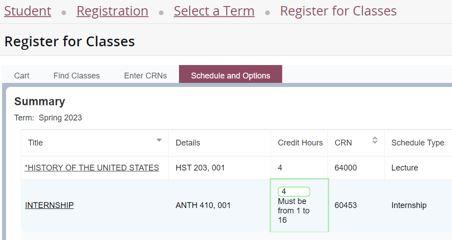
Click on the Submit button in the bottom right-hand corner. A green Save Successful message will pop up in the upper right-hand corner of the page.

Adding courses – second week of term
Adding a course during the second week of the term will require departmental approval.
- You will need to request an override from the department responsible for the course in order to register for the course in Beaver Hub – Register/Add/Drop Classes.
- Once you receive the override, enter the CRN for the course in the Enter CRNs tab and click the Add to Summary button and then click Submit.
- A confirmation message, "Save Successful" will display in the upper right. Under the Summary box, the Status column will indicate "Registered" for the added courses.
Lectures, labs, recitations, and studios (multi-part courses)
- If a course lecture is “linked” to a noncredit laboratory or recitation or studio, you must register for all parts of the course at the same time.
- Online registration will not permit you to register for one part without the other. Likewise, you may not drop only one part of a “linked” course; if you do so, the other part will be dropped automatically.
- If you want to change one part of a multi-part course, you should drop the part and add a new part at the same time before processing your requested changes.
Registration override
- Some courses have restrictions, such as class standing, student level, major, and campus that are checked during the registration process.
- Course restrictions are listed in the Schedule of Classes under Registration Restrictions for a particular course.
- Registration overrides are given to students in order to register for courses that have restrictions or permissions.
- Some courses require multiple overrides depending on the error message you are receiving while attempting to register for the course.
- You will need to request an override from the department offering the course.
- All overrides are handled online by the department or authorized staff.
- After an override is issued you must still register yourself for the course.
Registration attempts
- Registration attempts are limited for the term.
- Normal course registration activity can easily be accommodated within the set limit.
- Once you reach the limit for registration attempts, your account will be locked, and all subsequent registration activity, including adds, drops, withdraws, credit changes, grading basis changes, etc., will need to be handled by the Office of the Registrar.
- Please note that utilizing automated processes or software applications such as bots to attempt to register for classes is not an appropriate use of the registration system.